Coder powers secure, scalable development across key industries — automotive, finance, government, and technology — enabling faster builds, tighter compliance, and seamless AI adoption in enterprise-grade cloud environments.
[! WARNING]
Using Coder through JetBrains Gateway is not recommended at this time. Instead, we suggest using JetBrains Toolbox for stability and performance benefits. If you are currently using Gateway, we recommend migration.
JetBrains Gateway is a compact desktop app that allows you to work remotely with
a JetBrains IDE without downloading one. Visit the
JetBrains Gateway website
to learn more about Gateway.
Gateway can connect to a Coder workspace using Coder's Gateway plugin or through a
manually configured SSH connection.
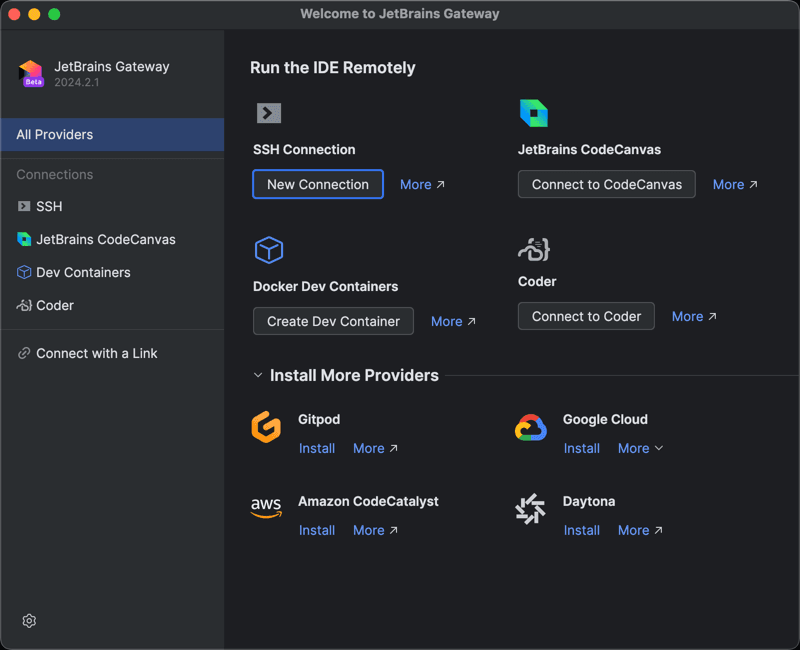
Under Install More Providers, find the Coder icon and click Install
to install the Coder plugin.
After Gateway installs the plugin, it will appear in the Run the IDE
Remotely section.
Click Connect to Coder to launch the plugin:
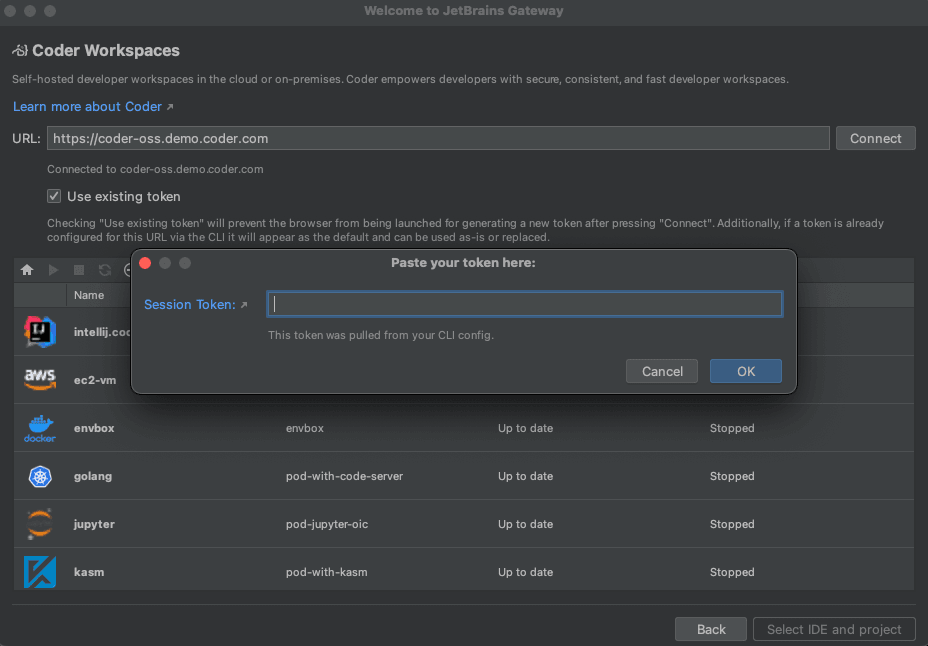
Enter your Coder deployment's
Access Url and click Connect.
Gateway opens your Coder deployment's cli-auth page with a session token.
Click the copy button, paste the session token in the Gateway Session
Token window, then click OK:
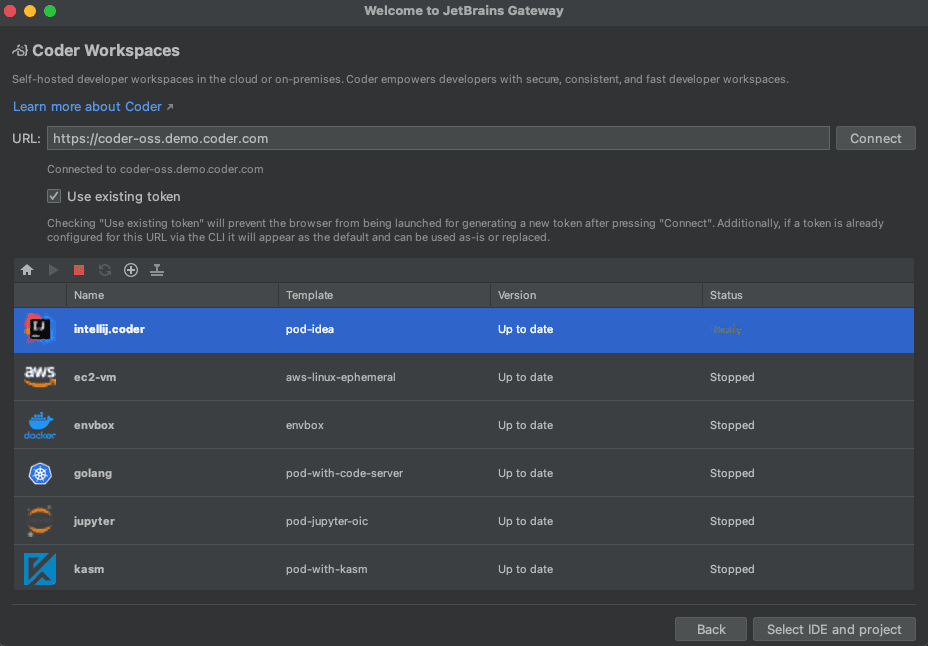
To create a new workspace:
Click the + icon to open a browser and go to the templates page in
your Coder deployment to create a workspace.
If a workspace already exists but is stopped, select the workspace from the
list, then click the green arrow to start the workspace.
When the workspace status is Running, click Select IDE and Project:
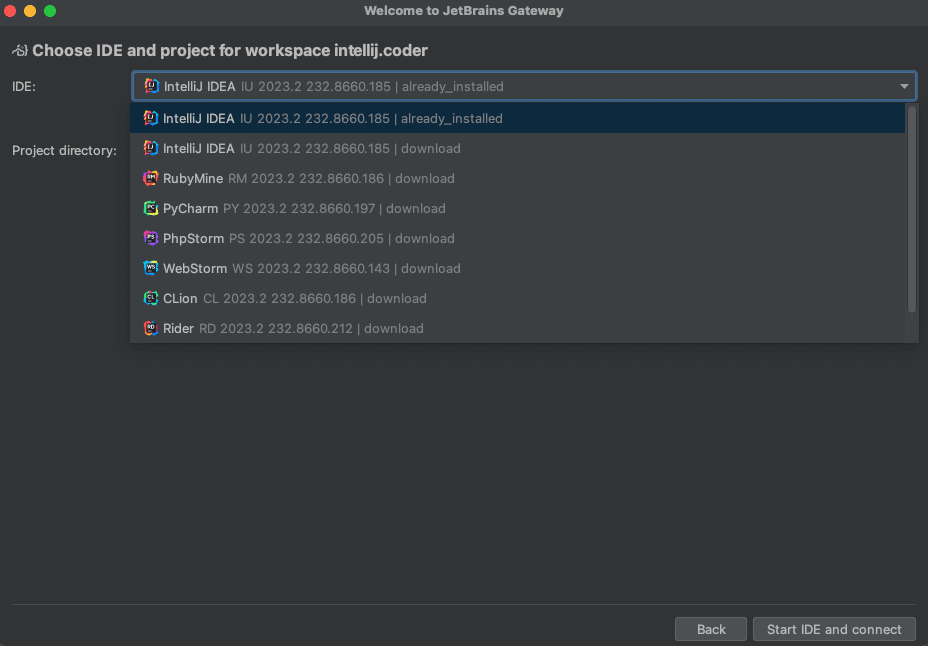
Select the JetBrains IDE for your project and the project directory then
click Start IDE and connect:
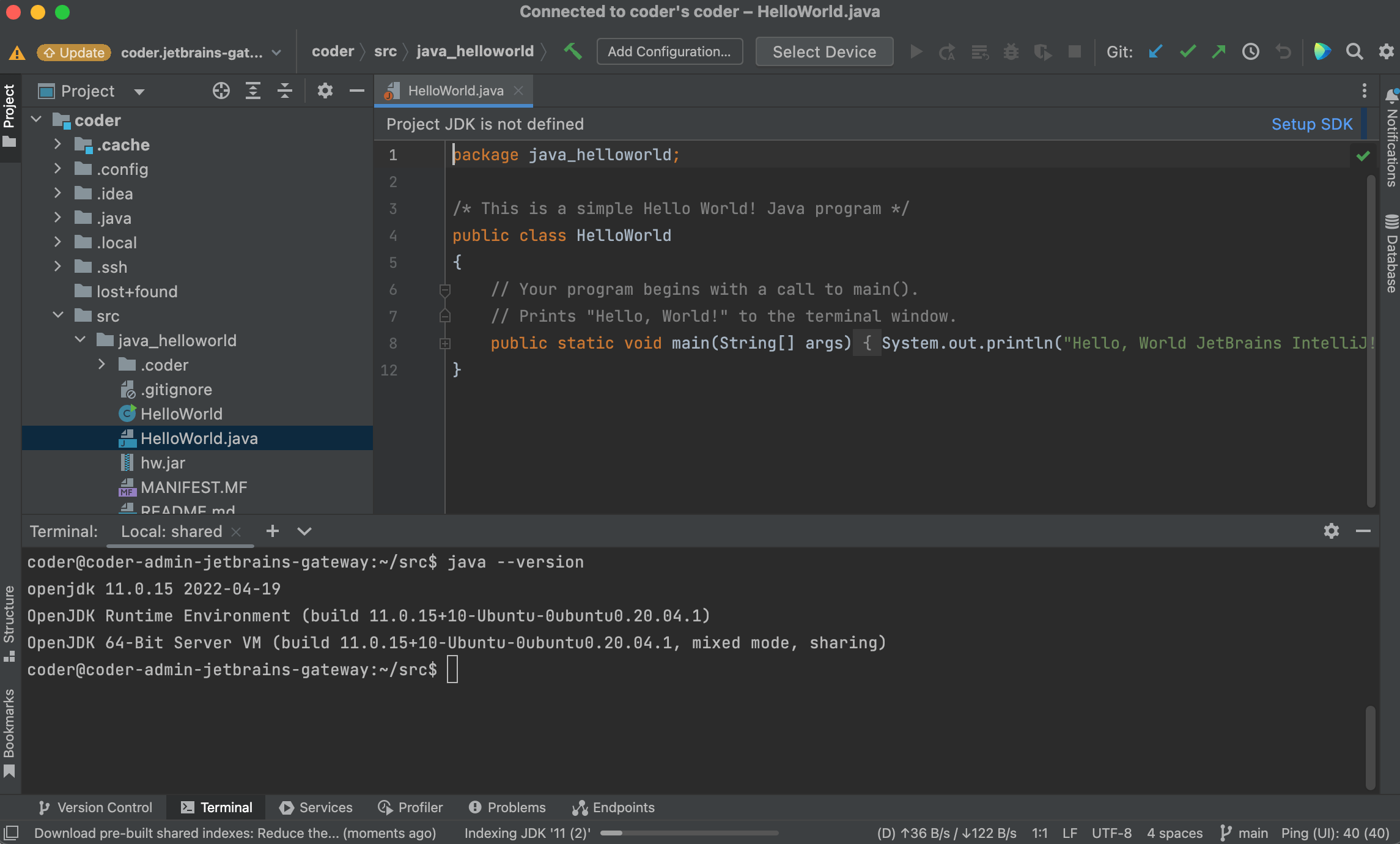
Gateway connects using the IDE you selected:
The JetBrains IDE is remotely installed into ~/.cache/JetBrains/RemoteDev/dist.
Update a Coder plugin version
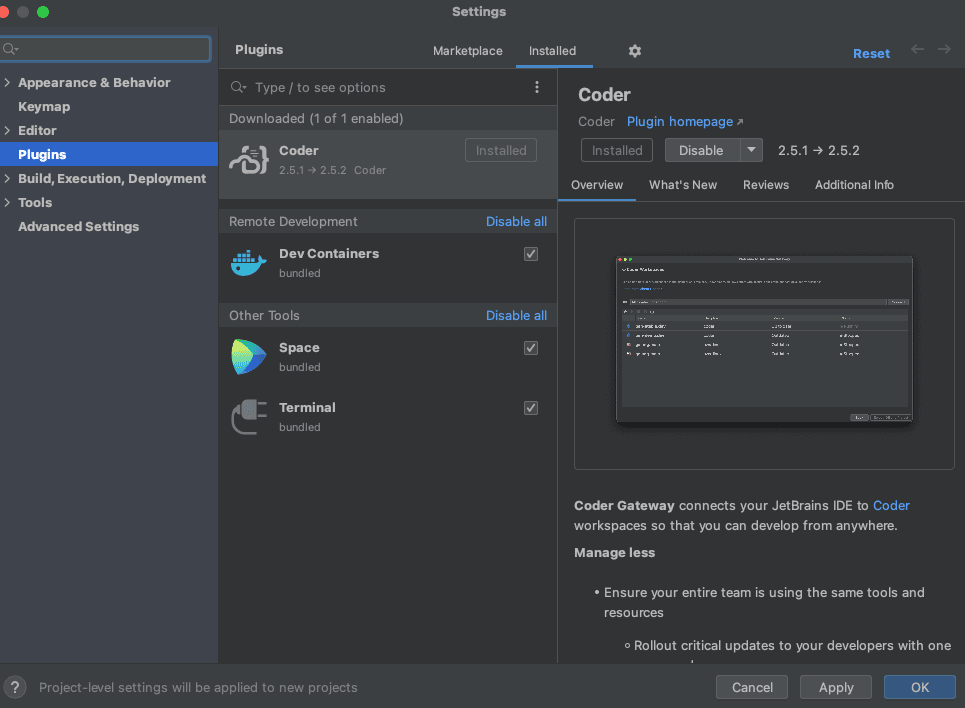
Click the gear icon at the bottom left of the Gateway home screen, then
Settings.
In the Marketplace tab within Plugins, enter Coder and if a newer plugin
release is available, click Update then OK:
Configuring the Gateway plugin to use internal certificates
When you attempt to connect to a Coder deployment that uses internally signed
certificates, you might receive the following error in Gateway:
Failed to configure connection to https://coder.internal.enterprise/: PKIX path building failed: sun.security.provider.certpath.SunCertPathBuilderException: unable to find valid certification path to requested target
To resolve this issue, you will need to add Coder's certificate to the Java
trust store present on your local machine as well as to the Coder plugin settings.
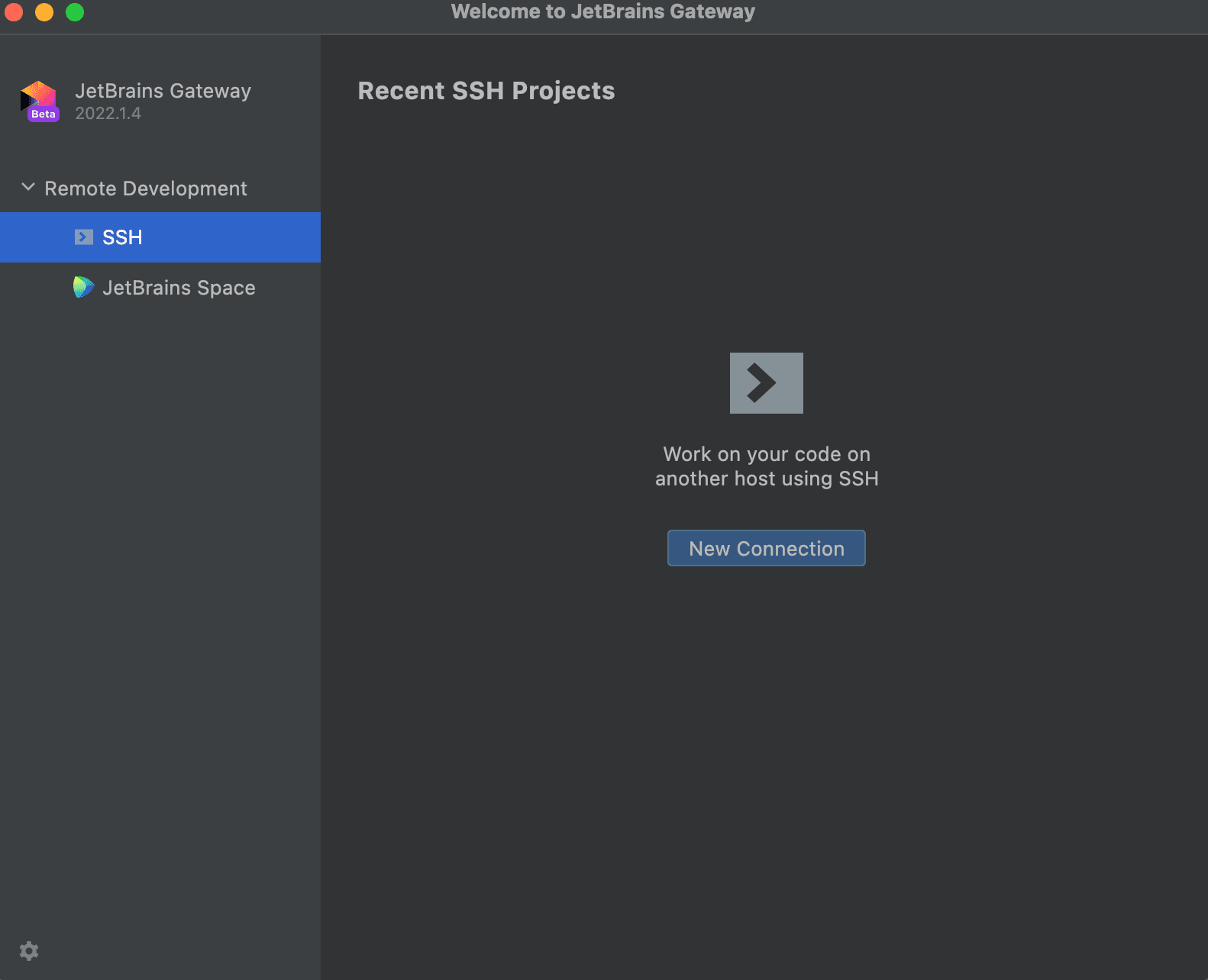
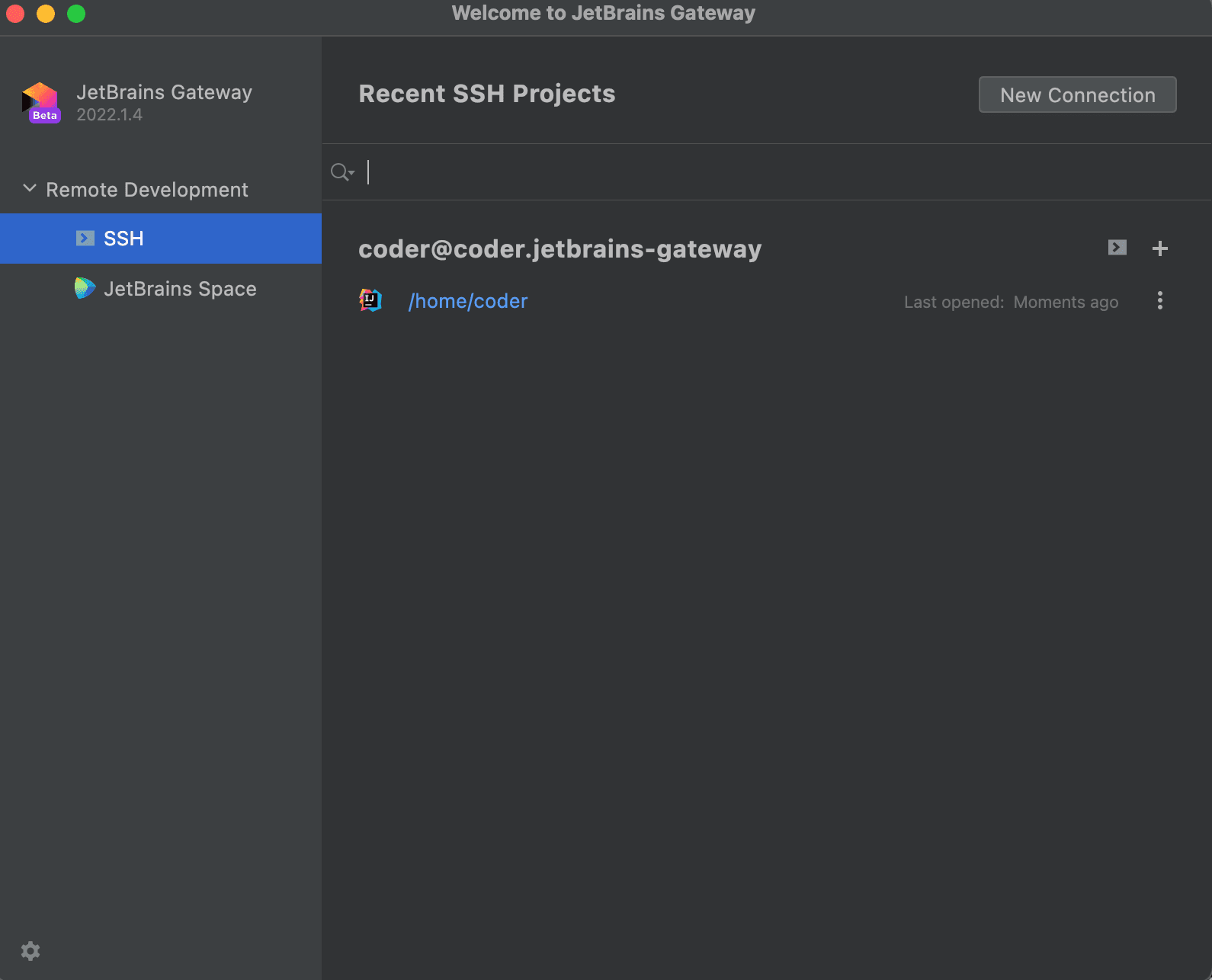
Open Gateway, make sure SSH is selected under Remote Development.
Click New Connection:
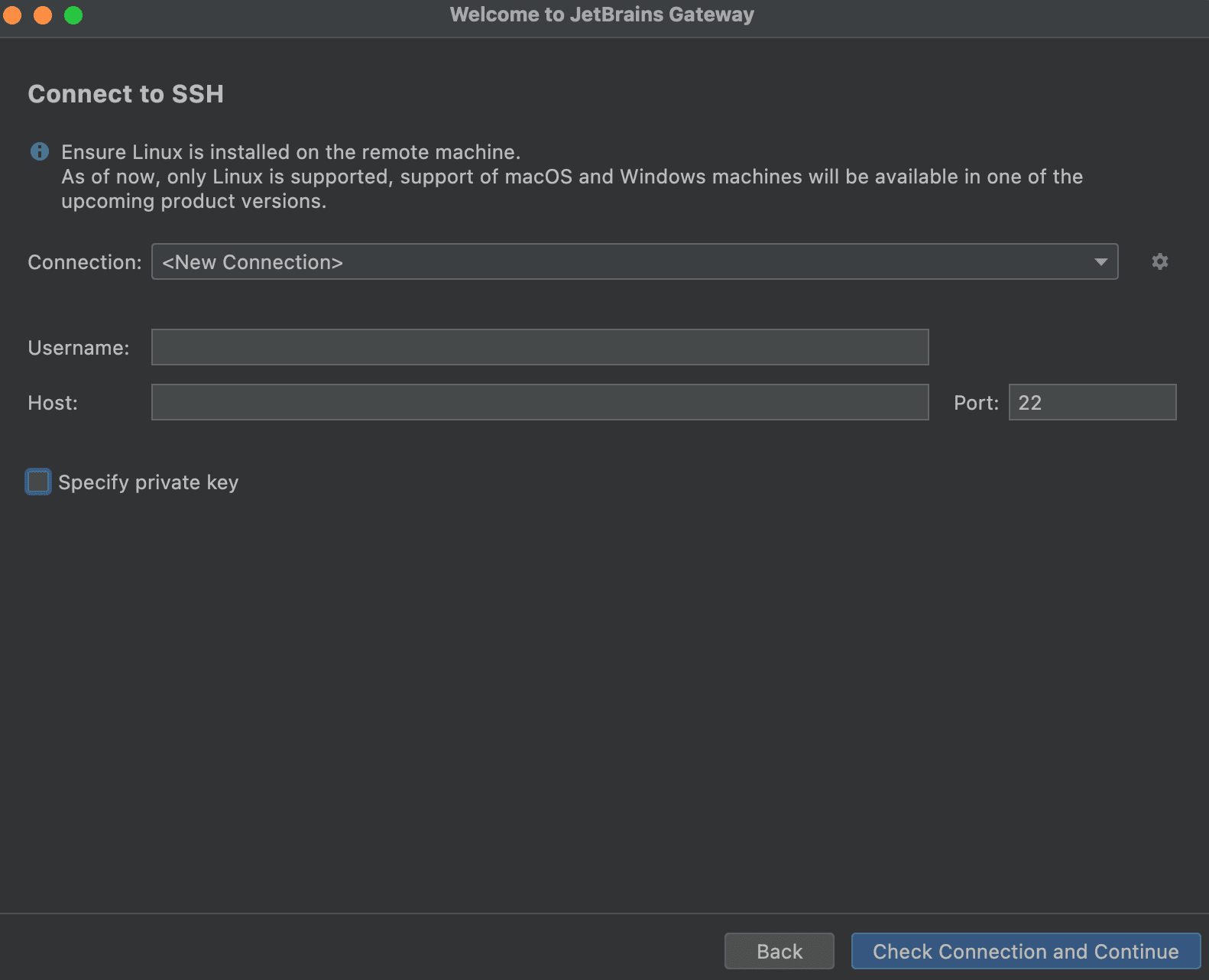
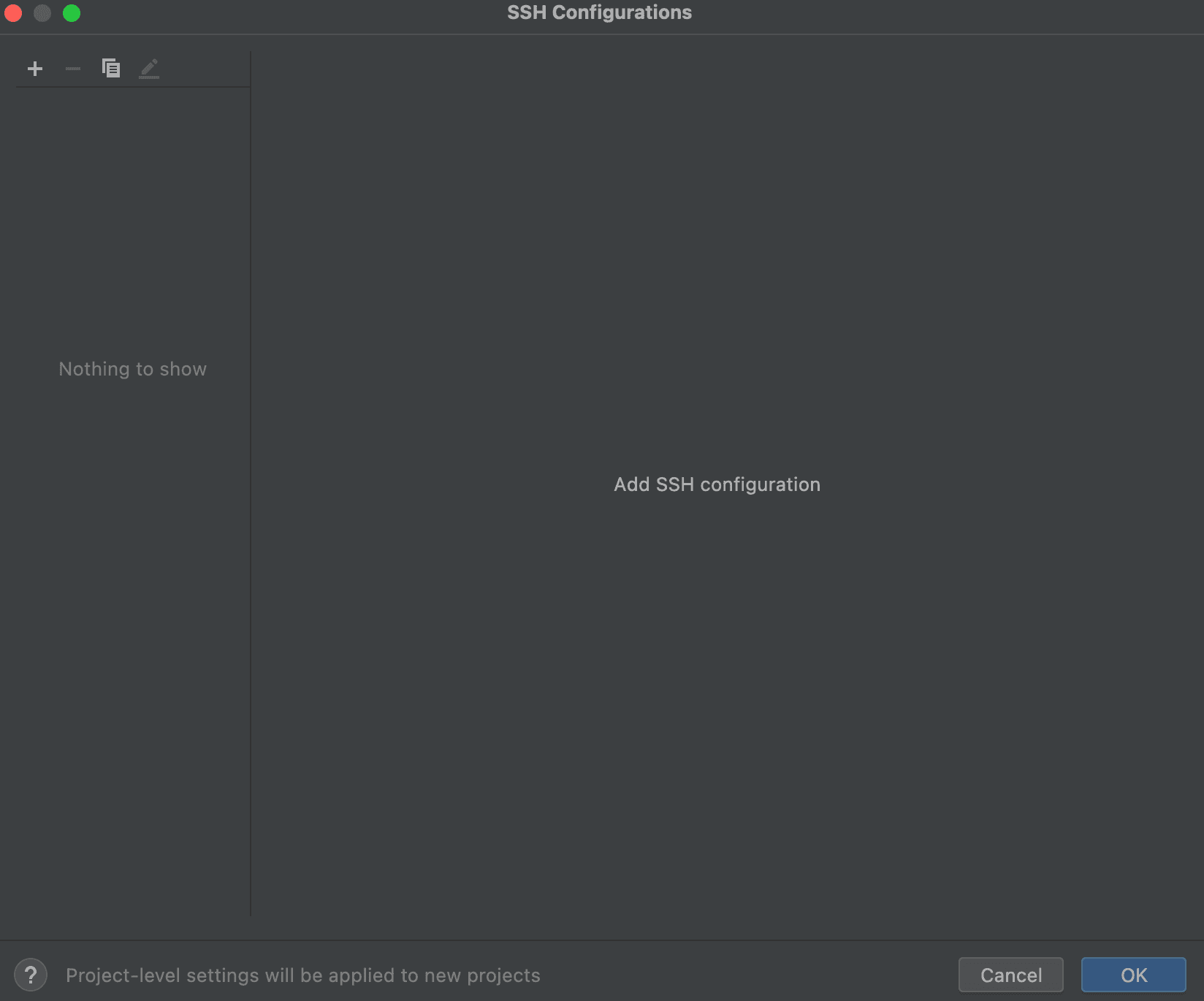
In the resulting dialog, click the gear icon to the right of Connection:
Click + to add a new SSH connection:
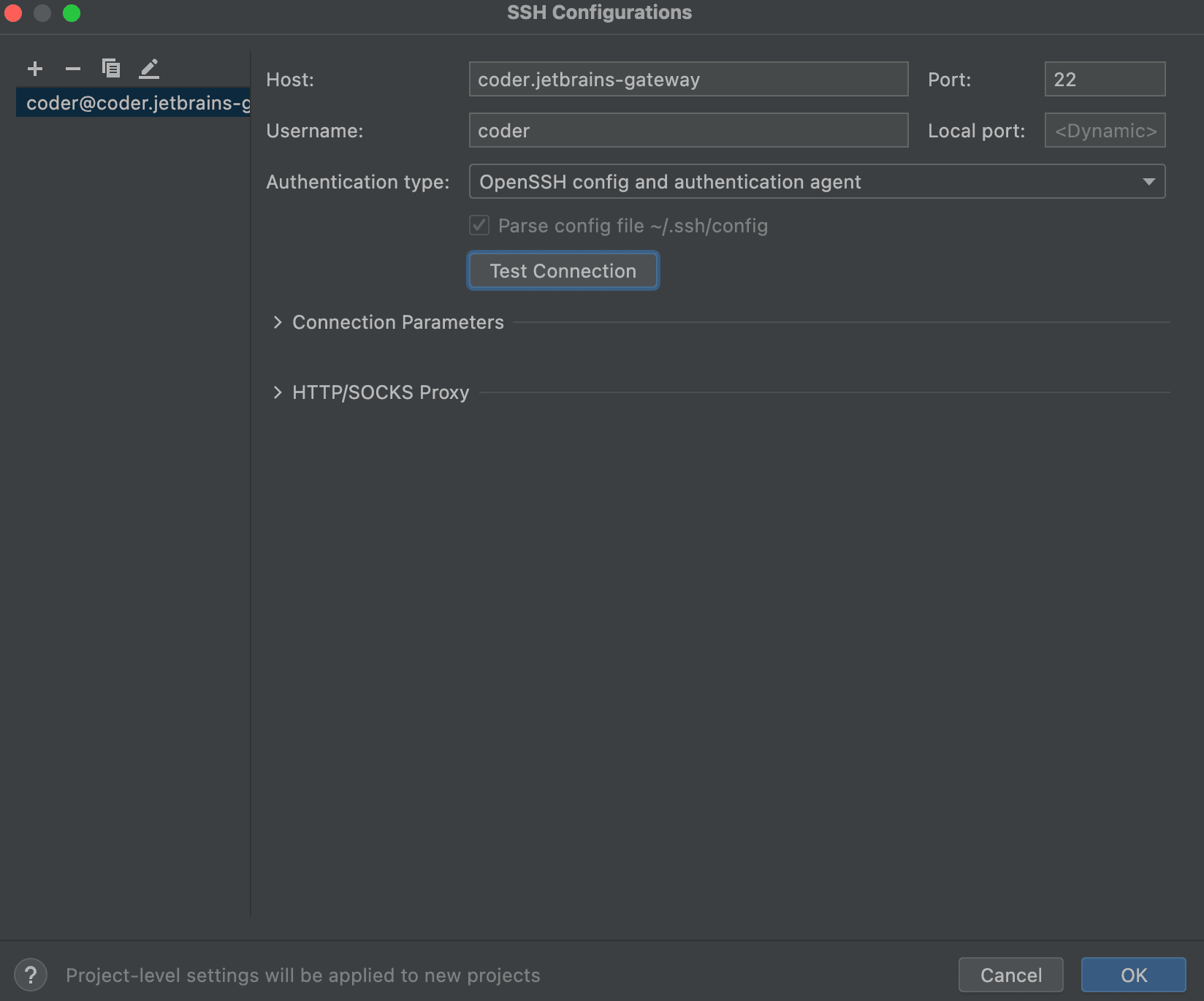
For the Host, enter coder.<workspace name>
For the Port, enter 22 (this is ignored by Coder)
For the Username, enter your workspace username.
For the Authentication Type, select OpenSSH config and authentication
agent.
Make sure the checkbox for Parse config file ~/.ssh/config is checked.
Tip
Gateway discovers hosts by parsing ~/.ssh/config. If your workspaces
do not appear in Gateway's host list, re-run coder config-ssh --no-wildcard to generate an individual Host entry per workspace
instead of a wildcard block.
Click Test Connection to validate these settings.
Click OK:
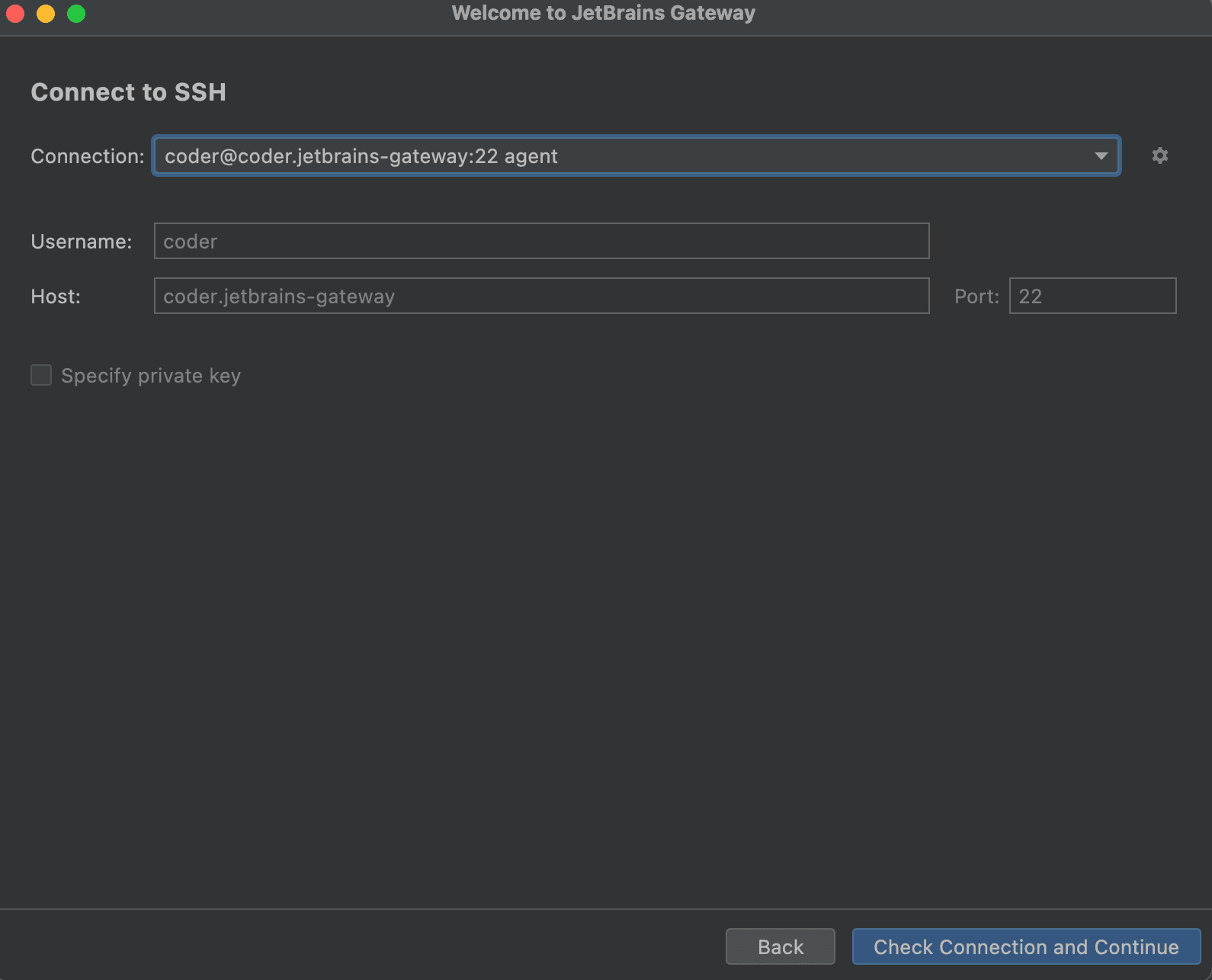
Select the connection you just added:
Click Check Connection and Continue:
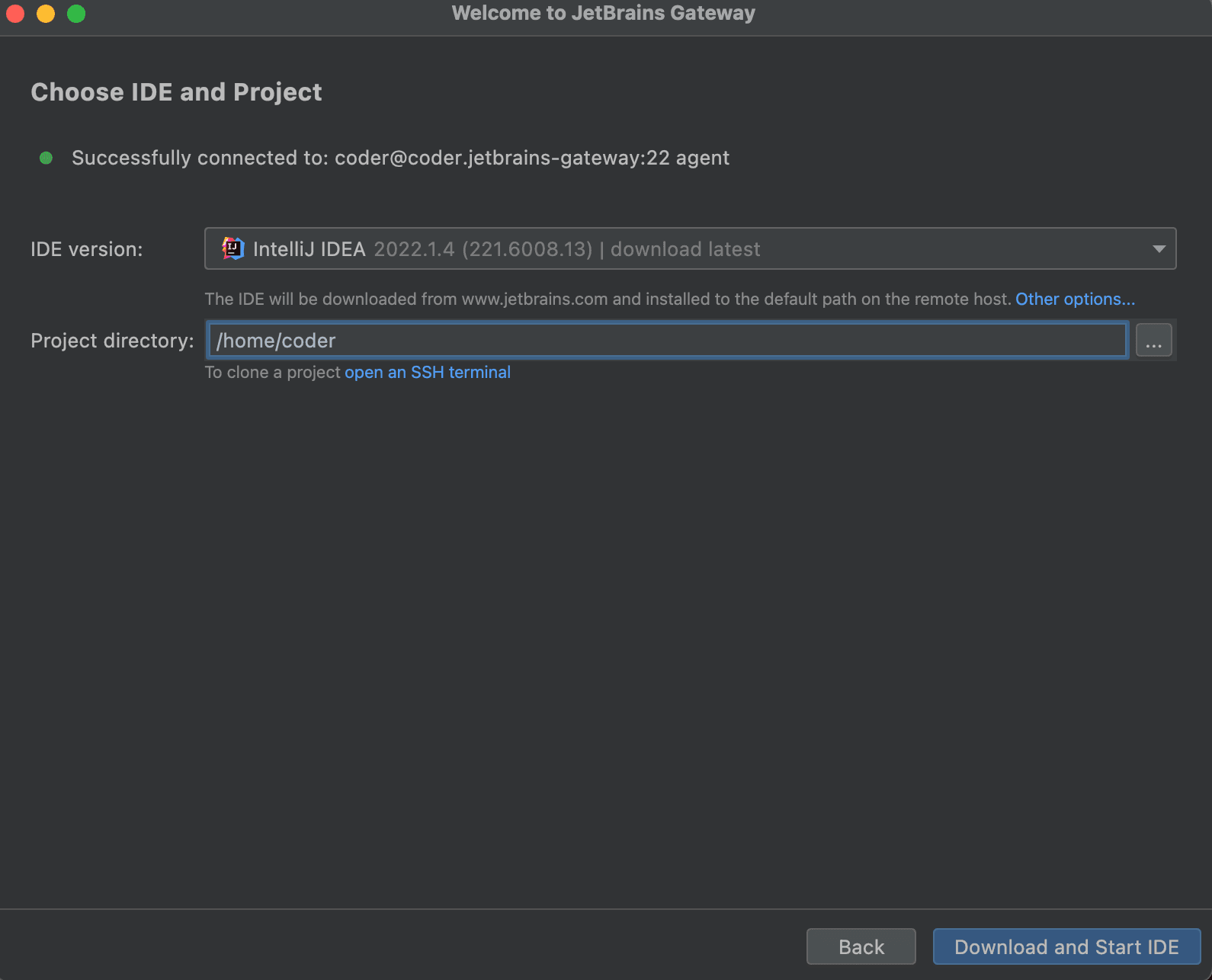
Select the JetBrains IDE for your project and the project directory. SSH into
your server to create a directory or check out code if you haven't already.
The JetBrains IDE is remotely installed into ~/.cache/JetBrains/RemoteDev/dist
Click Download and Start IDE to connect.
Using an existing JetBrains installation in the workspace