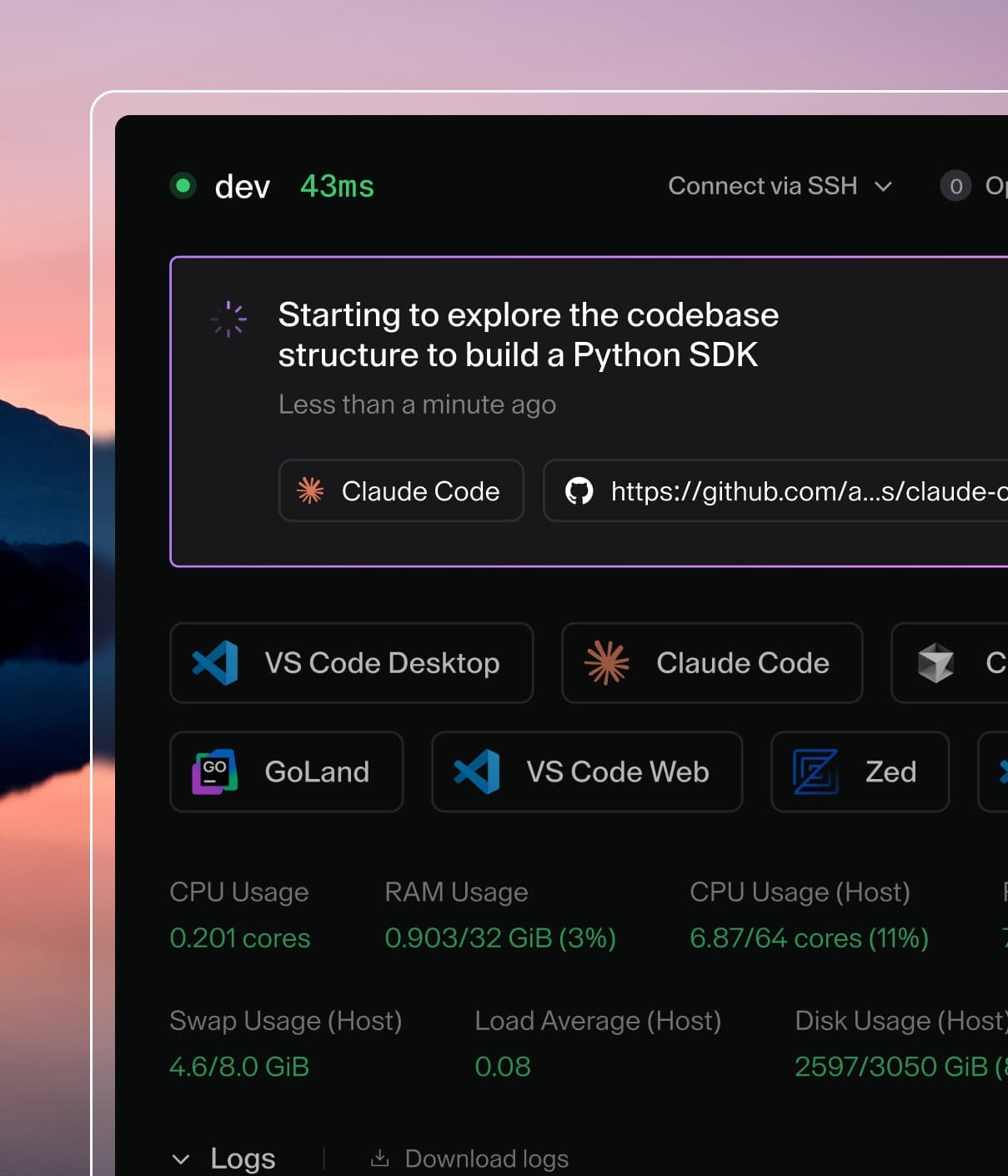
Coder powers secure, scalable development across key industries — automotive, finance, government, and technology — enabling faster builds, tighter compliance, and seamless AI adoption in enterprise-grade cloud environments.
Organization admins can register external MCP servers that provide additional
tools for agent chat sessions. Each organization has its own set of MCP
servers, and chats only offer servers from the chat's organization. Configured
servers are injected into or offered to users during chat depending on the
availability policy.
This feature is accessible at Admin settings > AI > Coder Agents > MCP servers
(/ai/settings/mcp-servers). In multi-organization deployments, use the
organization picker to choose which organization's servers to manage. The
server list shows the picker when you can access more than one organization's
servers. The add and update views always show the target organization, as a
read-only field when only one organization is available.
Add an MCP server
Navigate to Admin settings > AI > Coder Agents > MCP servers.
Select Add server.
Fill in the configuration fields described below.
Select Save.
Identity
Field
Required
Description
display_name
Yes
Human-readable name shown to users in chat.
slug
Yes
URL-safe identifier, auto-generated from display name. It must be unique within the organization.
description
No
Brief summary of what the server provides.
icon_url
No
Emoji or image URL displayed alongside the server name.
Connection
Field
Required
Description
url
Yes
The MCP server endpoint URL.
transport
Yes
Transport protocol. streamable_http or sse.
Availability
Field
Required
Description
enabled
No
Master toggle. Disabled servers are hidden from non-admin users.
When enabled, requires the model to describe each tool call's purpose in natural language, shown as a status label in the UI.
forward_coder_headers
No
When enabled, forwards Coder identity headers on every outgoing MCP request. See Coder identity headers.
Availability policies
Policy
Behavior
force_on
Injected into every chat whose owner has ACL access to the server. No opting out.
default_on
Pre-selected in new chats. Users can opt out.
default_off
Available in the server list but users must opt in.
Authentication
Each MCP server uses one of five authentication modes. When you change the
auth type, fields from the previous type are automatically cleared.
OAuth2 client secrets, API keys, and custom headers are never returned in API responses.
Boolean flags indicate whether each value is set.
None
No credentials are sent. Use this for servers that do not require
authentication.
OAuth2
Per-user authorization. The administrator configures the OAuth2 provider, and
each user independently completes the authorization flow.
Manual configuration — provide all three fields together:
Field
Description
oauth2_client_id
OAuth2 client ID.
oauth2_auth_url
Authorization endpoint URL.
oauth2_token_url
Token endpoint URL.
Optional fields:
Field
Description
oauth2_client_secret
OAuth2 client secret.
oauth2_scopes
Space-separated list of scopes.
oauth2_revocation_url
Token revocation endpoint URL (RFC 7009).
The revocation endpoint must use HTTPS.
Loopback URLs may use HTTP for local development and tests.
Auto-discovery — leave oauth2_client_id, oauth2_auth_url, and
oauth2_token_url empty. The server attempts discovery in this order:
RFC 9728 — Protected Resource Metadata
RFC 8414 — Authorization Server Metadata
RFC 7591 — Dynamic Client Registration
Auto-discovery also records the provider's revocation_endpoint from the
RFC 8414 metadata when advertised. An explicit oauth2_revocation_url in
the request takes precedence over the discovered value.
Users connect through a popup that redirects through the OAuth2 provider.
Tokens are stored per-user and refreshed automatically. Users can disconnect
via the UI or API to remove stored tokens. When a revocation endpoint is
configured, disconnecting also asks the provider to revoke the token
(RFC 7009). Provider revocation is best-effort: the stored token is always
deleted from Coder, and the disconnect response reports whether provider
revocation succeeded via token_revoked and token_revocation_error.
API key
A static key sent as a header on every request.
Field
Required
Description
api_key_header
Yes
Header name (e.g., Authorization).
api_key_value
Yes
Secret value sent in the header.
Custom headers
Arbitrary key-value header pairs sent on every request. At least one header
is required when this mode is selected.
User OIDC Identity
Forwards the calling user's OIDC access token (stored in
user_links.oauth_access_token) to the MCP server as an
Authorization: Bearer <token> header. The token is refreshed
transparently before each request if it has expired or is close to
expiring.
No admin-configurable fields. No per-user connect step.
Limitation: this auth mode only works for users who authenticated to
Coder via OIDC. Users who logged in with password or GitHub will see
requests sent without an authorization header, and the upstream MCP
server is expected to respond with 401.
Tool governance
Control which tools from a server are available in chat:
Field
Description
tool_allow_list
If non-empty, only the listed tool names are exposed. An empty list allows all tools.
tool_deny_list
Listed tool names are always blocked, even if they appear in the allow list.
Coder identity headers
MCP servers configured with forward_coder_headers = true receive Coder identity headers on every outgoing request.
When the server config has a signing secret, Coder also signs the request body and the effective identity header values.
Header
Description
X-Coder-Owner-Id
Coder user who owns the chat that issued the tool call.
X-Coder-Chat-Id
Top-level parent chat ID. For root chats, this is the chat's own ID.
X-Coder-Subchat-Id
Subchat ID. This header is absent for root chats.
X-Coder-Workspace-Id
Workspace associated with the chat. This header is absent when the chat has no workspace.
X-Coder-Signature-Timestamp
Unix timestamp in seconds used to limit replay.
X-Coder-Signature
Request signature in the form v1=<lowercase hexadecimal HMAC-SHA256>.
Coder sends the same identity headers to LLM providers, so a first-party MCP server can correlate a tool call with the originating chat.
Configure request signing
Enable Forward Coder identity headers and enter a Signing secret under Behavior.
Generate a strong random secret, for example with openssl rand -hex 32, and configure the same secret on the MCP server.
Use the hexadecimal text as the HMAC key, not the decoded bytes.
Without a secret, forwarding remains unsigned.
The existing create and update APIs accept signing_secret.
Coder never returns it; responses expose only has_signing_secret.
Omitting it in an update preserves the stored value; an explicit empty string clears it.
In the UI, leaving the secret field unchanged or blank preserves the existing secret.
Warning
Coordinate secret changes with the MCP server.
Requests fail verification when Coder and the MCP server use different secrets.
Signature format
Coder builds this canonical string from the outgoing request.
The lines use \n separators with no trailing newline:
v1
<timestamp from X-Coder-Signature-Timestamp>
<HTTP method, uppercase>
<request path including query, for example /api/mcp?x=1>
<lowercase hexadecimal SHA-256 of the exact request body bytes>
owner=<value of X-Coder-Owner-Id>
chat=<value of X-Coder-Chat-Id>
subchat=<value of X-Coder-Subchat-Id>
workspace=<value of X-Coder-Workspace-Id>
An absent identity header contributes an empty value after the equals sign.
A request without a body uses the SHA-256 hash of the empty byte string.
Coder sets X-Coder-Signature to v1= followed by the lowercase hexadecimal HMAC-SHA256 of the canonical string, keyed with the server's signing secret.
The v1= prefix identifies the signing algorithm version.
If an auth header for the configured auth_type collides with an identity header, the auth header wins.
Coder signs the effective header value that the request sends.
Verify signatures
The receiver must hash the raw request body before JSON parsing or other transformations.
Use the raw request target, including its leading slash and query string, in the canonical string.
Receivers MUST use constant-time comparison for the signature.
Receivers MUST treat the identity headers as trustworthy only after signature verification succeeds.
Reject requests when the timestamp differs from the receiver's current time by more than 300 seconds.
This timestamp window is the v1 replay bound because v1 has no nonce or replay cache.
Because the identity headers disclose chat identity, Forward Coder identity headers is off by default.
Enable it only for first-party or trusted internal MCP servers.
Permissions
Action
Required role
Create, update, or delete
Organization admin
View enabled servers
Member granted through ACL
OAuth2 connect
Member granted through ACL
OAuth2 disconnect
Token owner
Manage ACLs
Organization admin
Disconnect only needs a valid session: users removed from the ACL or the
organization can still delete their stored token and revoke the provider
grant.
Members only see enabled servers in their own organizations. Sensitive fields
such as API keys and client secrets are redacted in API responses.
Users with access to an organization's MCP servers can open the MCP servers
settings page. Coder enables the edit controls for the users who can manage the
selected organization's servers.
Only deployment administrators can add or update a server that uses User OIDC Identity authentication.
Refer to Organization scope for the organization scope of MCP servers and the upgrade behavior.
Access control
Each server has a group and user ACL that controls which members can see and
use it. New servers grant read access to the organization's Everyone group,
so all members have access by default. Members with MCP server share permission
can open Server actions > Manage permissions to remove the Everyone
entry and grant specific groups or users instead. They can also manage the ACL
through the API
(GET/PATCH /api/v2/organizations/{organization}/mcp-servers/{id}/acl).
ACL management is available in all editions and does not require an enterprise
entitlement. ACL changes are recorded in the audit log.
Revoking access stops a member from newly selecting the server in any chat,
but chats that already have the server selected keep using it, the same way
existing workspaces keep running after template access is revoked. To cut
off existing chats as well, disable or delete the server.
This feature is experimental.
Pin a release before broad rollout and review the release notes before upgrading.
Enable the experiment
coder server --experiments=chat-inline-mcp-servers
Or set the environment variable:
CODER_EXPERIMENTS=chat-inline-mcp-servers
What it does
A chat owner can declare up to five MCP servers inline on a chat through the API, by URL and headers, with no administrator registration.
Inline servers sit next to the organization-registered servers selected with mcp_server_ids.
On every turn, chatd connects to each declared server over streamable HTTP, calls tools/list, and offers the discovered tools to the model next to the built-in and organization-registered tools.
POST /api/v2/chats/{chat}/messages accepts the same field and replaces the chat's set before the turn runs.
Omit inline_mcp_servers to keep the current set.
Send [] to remove every server.
A server whose slug already exists keeps its id.
Only root chats accept inline_mcp_servers.
At the start of each turn, a subagent chat loads the root chat's current servers that have allow_in_subagents set to true.
A change to the root chat's set also applies to existing subagents on their next turn.
Plan mode does not limit the root chat's servers.
A subagent chat in plan mode gets none of them.
Fields
Field
Description
slug
1 to 32 ASCII letters, numbers, _, or -, starting with a letter or number. Unique within the chat. Prefixes every tool name.
The URL must use https://, or http:// to an IP literal inside CODER_MCP_ALLOWED_PRIVATE_CIDRS.
The URL must not contain userinfo, a query string, or a fragment.
Private and reserved IP literals are rejected at declaration time.
Hostnames that resolve to a blocked range fail when chatd connects.
Header names that Coder or the MCP transport control are reserved and rejected: names starting with Proxy- or X-Coder-, and Host, Content-Length, Connection, Transfer-Encoding, Trailer, Upgrade, TE, Keep-Alive, Accept, Accept-Encoding, Content-Type, Last-Event-ID, MCP-Protocol-Version, and MCP-Session-ID.
Header names are case-insensitive.
A declaration that repeats a name with different casing is rejected.
Security
Header values are encrypted at rest when database encryption is configured.
The URL, each of its path segments, and header values are redacted from every string the model sees, including tool descriptions and tool results.
Each part of a header value separated by whitespace, ;, or ,, such as the token in Bearer <token>, is also redacted.
In a name=value part, such as session=<token> in a Cookie header, the value is also redacted on its own, but the name is not.
Parts and values shorter than 8 bytes are not redacted.
Inline servers have no signing secret, so Coder does not sign the Coder identity headers it sends to them.
Use these headers to link requests to chats, not to authenticate the user.
Tool calls are at-least-once.
Every tools/call request carries _meta["com.coder/tool_call_id"], which stays the same across chatd retries of one model tool call.
A server can use it to deduplicate side effects.
Kill switch
--disable-chat-caller-supplied-tools (CODER_DISABLE_CHAT_CALLER_SUPPLIED_TOOLS) rejects chat requests that include unsafe_dynamic_tools or inline_mcp_servers with 403, and runs existing chats without either.
The flag takes effect on coder server restart.
Turning off the chat-inline-mcp-servers experiment has the same effect on existing chats: declared servers stay stored and are not connected.
GET /api/v2/chats/{chat} still returns declared servers while the flag is set, and a message with "inline_mcp_servers": [] still removes them.
Read back
GET /api/v2/chats/{chat} returns the declared servers in inline_mcp_servers to every user who can read the chat.
The url field is empty unless the chat owner makes the request.
Chat list responses do not include them.
Each server includes has_custom_headers but never header names or values.